
If you want to speed up your WordPress site, you really only need to tackle three things first: your hosting and caching setup, image and asset compression, and cleaning out all the plugin clutter. These three areas are the usual suspects behind performance bottlenecks and almost always deliver the biggest wins, often cutting load times by 50% or more.
Why a Slow WordPress Site Kills Your Business Growth
Let’s be blunt: a slow website is quietly draining your bank account. Every extra millisecond it takes to load is another potential customer walking away, especially on mobile where patience is practically zero. This isn’t just some tech problem for your IT guy to fix—it’s a full-blown business crisis that hits your revenue, search rankings, and brand reputation.

What used to be a minor hiccup is now a major deal-breaker. A load time delay of just one to three seconds can increase the chance of a visitor bouncing by a staggering 32%. In the e-commerce world, that translates directly into abandoned carts and lost sales. If your online store brings in $1,000 a day, a simple one-second delay could be costing you over $25,000 a year.
The Real-World Business Impact of Lag
The damage from a slow site spreads through every part of your online presence. It’s time to stop thinking of site speed as a technical chore and start treating it like the core business metric it is.
- Damaged SEO Rankings: Google has been very clear that page speed is a ranking factor for both desktop and mobile. Slow sites get pushed down in search results, making it that much harder for new customers to even find you.
- Shrinking Conversion Rates: A snappy, responsive site just feels more professional and trustworthy. A slow, clunky experience creates friction and doubt, causing people to ditch sign-up forms and leave their shopping carts full.
- Poor User Experience: First impressions are everything. For many, your website is their very first interaction with your brand. A long wait sends a clear message: you don’t value their time. Trust starts to erode before you’ve even had a chance to show them what you can do.
A slow website is like having a single cashier during a holiday rush—frustrating, inefficient, and guaranteed to send customers straight to your competitors.
Common Culprits and Their Business Cost
It’s usually not one big thing, but a combination of small technical issues that create a terrible user experience. Giant, unoptimized images make your pages heavy and sluggish. A dozen poorly coded plugins can bog down your server, dragging out the time it takes to even start loading the page. Even choosing a bloated, “do-everything” theme can cripple your site’s performance right out of the gate.

Ultimately, learning how to speed up your WordPress site is a fundamental business strategy. While many of the fixes in this guide are totally manageable, things can get tricky. Diving into server configurations, database optimization, and code-level tweaks isn’t for everyone. If you find yourself getting overwhelmed by the technical details, bringing in a professional team like Websites USA can be a smart move. It frees you up to focus on growing your business while they make sure your digital storefront is as fast and efficient as it can be.
Your Performance Foundation: Hosting, Caching, and CDNs
Before you start messing with plugins or shrinking images, we need to talk about the bedrock of your website’s performance. You can’t build a skyscraper on quicksand, and the same goes for your WordPress site.
Your hosting, caching strategy, and Content Delivery Network (CDN) are the concrete pillars that decide just how fast your site can ever hope to be. Get these right, and every other optimization you make will actually count for something.
Choosing the Right Hosting Plan
Think of your web host as the engine that powers your site. A slow, underpowered engine will sputter and stall, no matter how slick the car’s body is. This is especially true when it comes to shared hosting—that budget-friendly option so many businesses start with.
Shared hosting is like living in a crowded apartment building. If your neighbor cranks up every appliance they own during peak hours, your lights are going to flicker. It’s the same deal online. If another website on your shared server gets a sudden traffic spike, your site’s performance will tank right along with it.
Let’s imagine an e-commerce store running on a $5/month shared plan. It might hum along just fine with 50 visitors a day. But launch a Black Friday sale, and suddenly 500 visitors hit the site at once. The server gets overwhelmed. Pages take 10-15 seconds to load, and the checkout process times out. This is a classic false economy; the money “saved” on hosting gets lost ten times over in abandoned carts and angry customers.
For any serious business, especially e-commerce, a low-cost shared hosting plan is often a liability, not a saving. Moving to a Managed WordPress or VPS (Virtual Private Server) plan provides dedicated resources, ensuring consistent performance even under heavy load.
The quality of your hosting provider is a critical piece of this puzzle. An optimized host can make a world of difference, and it pays to do your homework. Digging into a list of the Best Managed WordPress Hosting Providers is a great starting point to compare options built specifically for WordPress speed.
To help you visualize the trade-offs, here’s a quick breakdown of common hosting types and what you can expect from each.
Hosting Type Impact on Site Speed and Cost
This table compares different web hosting options to help you choose the right foundation for your WordPress site’s performance needs and budget.
| Hosting Type | Best For | Typical Speed Impact | Average Monthly Cost |
|---|---|---|---|
| Shared Hosting | Hobby sites, personal blogs | Slow, inconsistent under traffic | $5 – $20 |
| VPS Hosting | Growing businesses, small e-commerce | Good, consistent performance | $20 – $80 |
| Managed WP | Serious businesses needing reliability | Excellent, optimized for WordPress | $25 – $150 |
| Dedicated Server | High-traffic sites, large enterprises | Highest performance, full control | $150 – $500+ |
Choosing the right hosting is the single most important decision for site speed, setting the ceiling for all other optimizations.

Understanding Caching: The Speed Multiplier
Once your hosting is solid, caching is your next big win. It’s pretty simple, actually. Think of it like a library keeping the most popular books right at the front desk. Instead of having the librarian run to the back of the building for the same book over and over, it’s kept ready for immediate checkout.
Without caching, every single time a visitor lands on your site, WordPress has to build the page from scratch. It fetches the header, grabs content from the database, finds the sidebar widgets, and stitches it all together. This process eats up time and server resources.
A caching plugin like WP Rocket short-circuits this whole process. It creates a static, pre-built HTML version of your pages. When a visitor arrives, the server can deliver this lightweight file instantly. It’s a game-changer that can slash page load times by 50% or more with just a few clicks.
Extending Your Reach With a CDN
A Content Delivery Network (CDN) solves the problem of geography. If your server is in Chicago, a customer browsing from Sydney is going to have a slower experience. The data just has a long way to travel.
A CDN fixes this by creating a global network of mini-servers that store copies of your site’s static files—things like images, CSS, and JavaScript.
Now, when that Sydney customer visits your site, the CDN delivers all those images and assets from a local server in Australia, not all the way from Chicago. This drastically cuts down latency and creates a fast, consistent experience for everyone, no matter where they are. It’s a must-have for any business with a national or global audience.
This flowchart shows the real-world business impact of getting these foundational elements wrong.
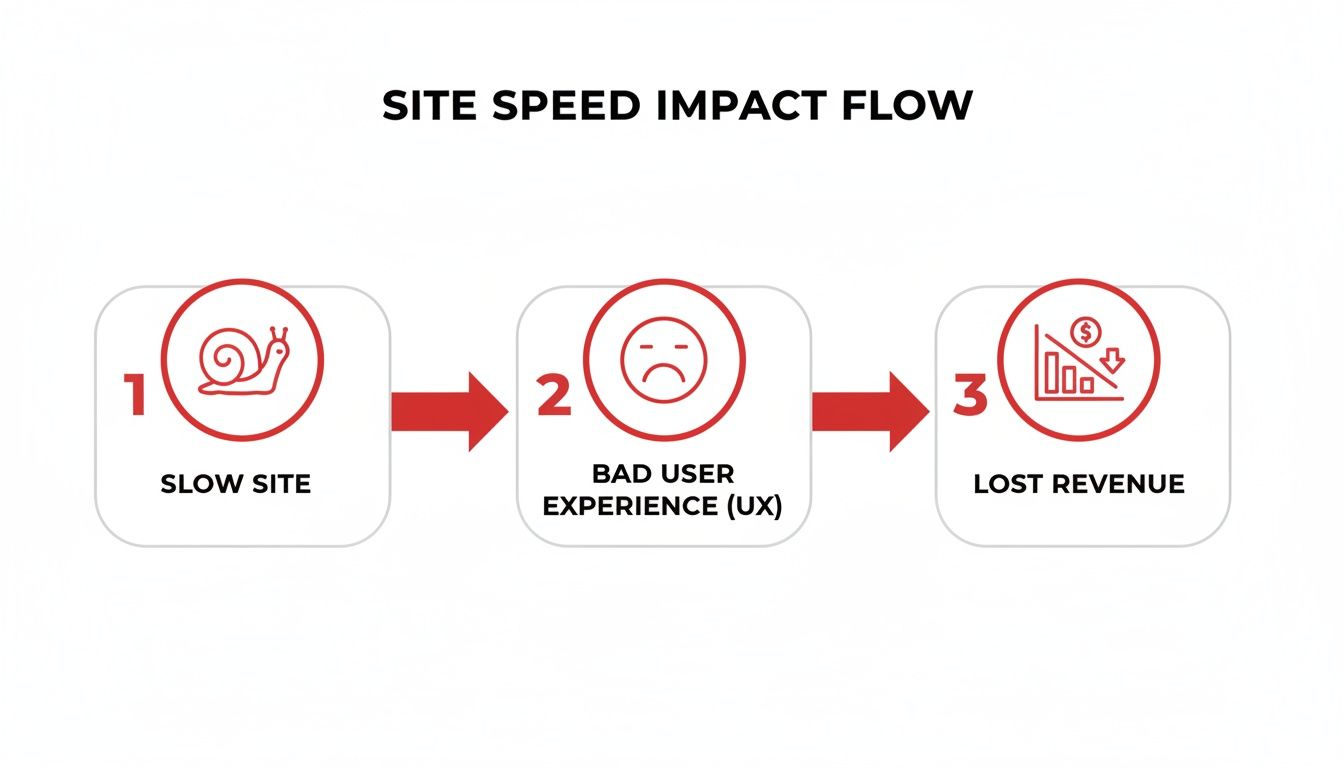
As you can see, a slow site leads directly to a poor user experience and, ultimately, lost revenue. A strong foundation is simply non-negotiable.
These concepts can feel a bit technical, and getting them right takes some expertise. For a more detailed breakdown, you can check out our guide on how to improve website speed. Or, if you’d rather focus on your business and leave the technical heavy lifting to the pros, our team at Websites USA can build and maintain this performance foundation for you, ensuring your site is fast, reliable, and ready to grow.
Optimize On-Page Elements: Images, Scripts, and Fonts

Now that you’ve got a solid foundation with fast hosting and smart caching, it’s time to dig into the stuff you can control directly on your pages. These on-page assets—your images, scripts, and fonts—are almost always the heaviest parts of a webpage. They’re the usual suspects behind frustratingly slow load times.
Let’s be blunt: large, uncompressed images are the number one performance killer on most websites I’ve ever worked on. A single high-resolution photo straight from a camera can be several megabytes. That’s way too big for the web and will bring a mobile connection to a grinding halt.
Taming Your Images The Right Way
If you’re serious about speeding up your WordPress site, optimizing your images is non-negotiable. The goal is simple: find the sweet spot between the smallest possible file size and great visual quality. Luckily, modern tools make this a piece of cake.
- Choose the Right Format: For years, it was JPEGs for photos and PNGs for graphics needing transparency. Today, WebP is your new best friend. It delivers fantastic compression and quality, often creating files that are 25-35% smaller than JPEGs with no visible difference.
- Compress Before You Upload: Get a tool like ShortPixel or Imagify. These services automatically compress your images on upload, stripping out all the unnecessary data without hurting the quality. It’s a huge time-saver.
- Implement Lazy Loading: This one is a game-changer. Lazy loading tells the browser not to load any images until they’re about to scroll into view. It dramatically speeds up that initial page render.
Think about loading a 20-image gallery. Without lazy loading, the browser tries to download all 20 images at once, delaying everything. With it, only the first image or two loads. The rest appear seamlessly as the user scrolls down, creating a much faster, smoother experience.
Even with recent WordPress core updates improving performance, these manual optimizations are still critical. While WordPress 6.6 cut template loading times, a massive portion of the 43.5% of the web powered by WordPress still suffers from slow mobile speeds—a huge problem in Google’s mobile-first world.
Tackling Render-Blocking Resources
Ever run a PageSpeed Insights test and see that dreaded warning: “Eliminate render-blocking resources”? It sounds super technical, but it boils down to one simple problem: your browser is pausing the page from loading to download and execute CSS and JavaScript files first.
It’s like a construction crew stopping all work on a house just to wait for a delivery of decorative doorknobs. It makes no sense. We need to tell the browser which files are critical for the initial view and which ones can wait a bit.
Minification Explained
Minification is just a fancy word for removing all the junk from your code—things like whitespace, comments, and line breaks—without changing how it works. A minified file is smaller, so it downloads faster. Simple as that.
Deferring JavaScript
Lots of JavaScript files, like those for a pop-up or a social sharing widget, don’t need to run right away. By deferring these scripts, you’re telling the browser to finish rendering the important, visible parts of the page first, and then run the script. This simple tweak can shave seconds off your perceived load time. Caching plugins like WP Rocket often handle this with a single checkbox.
The Hidden Cost of Third-Party Scripts
Your site probably uses scripts from other services, and these can be a hidden performance killer. We’re talking about things like:
- Google Analytics for tracking visitors.
- Facebook Pixel for ad retargeting.
- Live chat widgets like Tawk.to or Drift.
- Embedded YouTube videos or social media feeds.
The problem is, you have no control over how fast these external scripts load. If a third-party server is slow, your site gets slow, too. The best way to combat this is to load these scripts locally whenever you can or use plugins that delay them from running until a user actually interacts with the page.
Beyond just WordPress-specific tweaks, it helps to understand the fundamentals of web performance. You can explore these proven strategies for faster website performance to build a broader knowledge base.
Optimizing all these on-page elements can feel like a deep dive into technical jargon. If you’re struggling to fix render-blocking resources or get your asset delivery just right, it might be time to call in a pro. A dedicated team like Websites USA can handle the entire process, ensuring your images, scripts, and fonts are perfectly optimized for maximum speed.
Conducting a Plugin and Theme Performance Audit

Every plugin you install and the theme you activate are essentially little programs running on your website. Just like the apps on your phone, some are built to be lean and efficient, while others are resource hogs that slow everything down. A bloated plugin or a clunky theme can single-handedly cripple your site, making a full performance audit a must.
Think of it this way: your server has a finite amount of processing power. A poorly coded plugin might make dozens of unnecessary calls to your database just to display a simple icon. Now, multiply that by 15, 20, or even 30+ plugins, and you have a perfect recipe for a sluggish, frustrating website.
Identifying the Slowest Plugins
Before you start deactivating things, you need to know what’s causing the problem. The old method of turning plugins off one by one is slow and often misleading. A much better way is to use a diagnostic tool to see exactly what’s happening behind the scenes.
The Query Monitor plugin is one of my go-to tools for this, and it’s completely free. Once it’s running, it adds a new menu to your admin bar showing you detailed performance data for every page you load. You’ll want to check the “Queries by Component” tab—it shows you exactly which plugins are making the most database queries and which ones are taking forever to load.
I’ve seen situations where a simple social sharing plugin was making 25 separate database queries on every single page load. That’s a massive performance drain you’d never find without a tool like this. It gives you a clear “hit list” of plugins that need a closer look.
Asking the Hard Questions About Your Plugins
Once you have your list of resource-heavy plugins, it’s time for a ruthless audit. For each one, you need to be honest with yourself:
- Is this plugin absolutely essential? Does it directly help your business, or is it just a “nice-to-have” feature that adds more clutter than value?
- Can I replace its function? Could you get the same result with a more lightweight plugin, a simple code snippet, or a feature that’s already built into your theme or another tool you use?
- Is the developer still active? Check the plugin’s page on the WordPress repository. You want to see recent updates, good reviews, and active support. An abandoned plugin isn’t just a performance risk; it’s a huge security threat.
A classic mistake is collecting dozens of single-function plugins. Instead of adding one plugin for header scripts, another for social icons, and a third for a contact form, find a well-coded theme or multi-purpose plugin that handles these things efficiently.
Why Your Theme Choice is Just as Critical
Your theme is the entire foundation of your site’s front end. Its impact on performance is massive and can’t be overstated. A bloated theme packed with built-in sliders, page builders, and animation effects can destroy your site speed before you even add your first blog post.
All that extra fluff comes at a cost: more CSS files to load, more JavaScript to execute, and more complex code for the browser to process. This is in stark contrast to modern, lightweight themes built for speed right from the start.
A Tale of Two Themes
| Feature | Bloated “Do-Everything” Theme | Lightweight Performance Theme (e.g., GeneratePress, Kadence) |
|---|---|---|
| Page Size | Often adds 500kb+ of assets | Typically under 50kb |
| HTTP Requests | Can add 20-30+ extra requests | Usually adds fewer than 10 requests |
| Code Quality | Often inefficient and unoptimized | Clean, modular, and built to WordPress standards |
| Customization | Relies on heavy, built-in options | Uses the native WordPress Customizer for efficient changes |
Starting with a theme like GeneratePress, Kadence, or Astra gives you a much faster foundation. They are intentionally minimal, giving you a clean slate to build on without inheriting a mountain of performance debt.
Performing a deep audit of your plugins and theme is one of the fastest ways to see immediate speed gains. It can get technical, so if you aren’t comfortable digging into database queries or migrating themes, bringing in a professional is always a good option. For those wanting to learn more, Websites USA has a great guide on how to optimize website performance that covers these topics in even more detail.
Advanced Tuning for Your Database and Backend
Once you’ve handled the big, obvious wins like caching and image optimization, it’s time to pop the hood and get your hands dirty. Your WordPress site’s backend and database are its engine room. Fine-tuning them is how you move from “pretty fast” to “genuinely impressive.”
Over time, your site’s database naturally collects digital junk. Think of it like a garage that slowly fills up with things you don’t need anymore. Old post revisions, spam comments, and expired “transients” (a form of temporary data) all pile up, making your database bigger, clunkier, and slower to respond. Every time a visitor loads a page, your server has to rummage through all that clutter, adding precious milliseconds to your load time.
Cleaning and Maintaining Your Database
A lean database is a fast database. The good news? You don’t need to be a database administrator to give it a proper cleanup. Plugins like WP-Optimize or WP-Sweep are built to safely find and toss out this unnecessary data with just a few clicks.
A typical cleanup routine hits these key areas:
- Deleting old post revisions: Every time you hit “Update,” WordPress saves a copy. It’s helpful, but after a while, you can have dozens of redundant versions of a single post bloating your database.
- Removing spam and trashed comments: These don’t truly disappear until they’re permanently deleted, so they just sit there taking up space.
- Clearing out transients: These are temporary bits of cached data. Sometimes they don’t get removed properly after they expire, leaving behind orphaned data.
Regular database maintenance isn’t a one-and-done task; it’s a crucial habit for long-term site health. Scheduling a quick cleanup once a month stops the bloat from ever getting out of hand and keeps your database snappy.
If you want to go deeper, you can always learn more about professional WordPress database optimization to keep this critical component in peak condition.
Upgrading Your PHP Version
Here’s one of the simplest yet most impactful backend optimizations you can make: make sure you’re running a recent version of PHP. PHP is the programming language that powers WordPress, and every new release comes packed with serious performance and security improvements.
Seriously, the difference is night and day. Moving from an old version like PHP 7.4 to a modern one like PHP 8.1 can allow your server to handle 25-50% more requests per second. It’s a completely free performance boost that way too many site owners miss out on.
Most good web hosts make switching your PHP version incredibly easy—it’s usually just a dropdown menu in your hosting control panel. Just remember to always test on a staging site first to make sure your theme and plugins play nicely with the new version.
Fine-Tuning WordPress Core Behavior
Beyond the database and PHP, a couple of specific WordPress features can create unnecessary server load if left unchecked. The two biggest culprits are usually the Heartbeat API and XML-RPC.
Taming the Heartbeat API
The Heartbeat API creates a steady connection between a visitor’s browser and your server. It’s what enables real-time features like auto-saving in the post editor. While useful, these constant “pings” can hammer your server’s CPU, especially on shared or budget hosting plans. A simple plugin like Heartbeat Control lets you slow down the frequency of these pings or even disable them on pages where they aren’t needed, freeing up valuable server resources.
Disabling XML-RPC
XML-RPC is an older protocol that let remote applications (like old mobile apps) connect to your WordPress site. It’s largely outdated now and is more of a security liability than a useful feature. If you aren’t actively using a service that requires it, your best bet is to disable it completely. It’s one less thing for your server to worry about and one less door for potential attackers to knock on.
These advanced steps require a bit more technical know-how, but they’re essential for anyone serious about wringing every last drop of performance out of their website. If this all feels a bit out of your depth, that’s perfectly okay. Sometimes it’s smarter to bring in a pro. A team like Websites USA can dive deep into these technical optimizations for you, ensuring your site’s engine is tuned to perfection.
When to Hire a WordPress Performance Expert
You’ve put in the work, you’ve followed the guides, but your site is still frustratingly slow. I get it. While tackling performance issues yourself can be incredibly rewarding, there’s a point where the DIY route starts costing you more in time and lost opportunity than you’d spend on an expert.
Knowing when to pass the torch isn’t admitting defeat. It’s a smart business move. It lets you get back to focusing on what you actually do best—running your business.
Diving into how to speed up your WordPress site can quickly become a rabbit hole of technical jargon, conflicting advice, and dead ends. If you’ve spent entire afternoons trying to get your Core Web Vitals into the green or you’re seeing server errors that are way over your head, it’s probably time to call in a specialist.
Signs It Is Time to Call an Expert
You’re likely ready for professional help if any of this sounds familiar:
- Persistent Errors: You keep running into stubborn 500-level server errors or “database connection” warnings that you just can’t seem to shake.
- Stagnant Core Web Vitals: No matter how much you tweak your caching plugins or optimize images, your Largest Contentful Paint (LCP) and Cumulative Layout Shift (CLS) scores refuse to budge.
- Complex Technical Debt: Your site is a tangled mess of a bloated theme and dozens of plugins that don’t play nicely together. The thought of untangling it all is just overwhelming.
- Lack of Time: The most common one. You’re spending more hours troubleshooting your website than you are on sales, marketing, or talking to customers.
When performance problems start hitting your bottom line—whether through lost sales or sinking search rankings—the cost of an expert stops being an expense and becomes a necessary investment.
This is where a dedicated team like Websites USA comes in. We live and breathe this stuff. We handle the deep, technical work like server-level tuning, advanced database optimization, and setting up continuous performance monitoring so you don’t have to.
We’ve turned around countless sites for businesses just like yours, helping them achieve the sub-second load times that transform user experience and drive real growth.
When it comes to WordPress performance, a lot of questions pop up. We get it. Here are some of the most common ones we hear from business owners, along with straightforward, expert answers.
FAQs
How fast should my WordPress site load?
Ideally, you want your site to load in under 2 seconds. That’s the sweet spot for keeping visitors engaged. For e-commerce sites, the goal is even more aggressive: get as close to 1 second as possible to maximize conversions. Google’s data shows that for mobile users, every second of delay beyond that drastically increases the chance they’ll leave.
Will deleting unused plugins actually speed up my site?
Yes, absolutely. Every active plugin adds code that needs to be processed by your server and often adds its own scripts (CSS/JavaScript) that have to be loaded by the visitor’s browser. Deactivating and deleting plugins you don’t use reduces this code bloat, lessens the strain on your server, and minimizes potential security risks. It’s one of the highest-impact cleanups you can do.
Is a CDN really necessary for a small business website?
It depends entirely on your audience’s geography. If you run a local business serving a single city (like a restaurant or a local plumber), a Content Delivery Network (CDN) is likely overkill since your customers are already physically close to your server. However, if your business serves a national or global audience, a CDN is a non-negotiable tool for delivering a fast, consistent experience to everyone, everywhere.
What is the single biggest mistake people make with WordPress speed?
The most common and damaging mistake is uploading huge, unoptimized images directly from a camera or phone. A single 5 MB image can take longer to load than the rest of the page combined, especially on a mobile connection. Always compress and resize images before uploading them to WordPress. Using a plugin to automate this process is one of the best investments you can make in your site’s speed.
While these fixes can make a huge difference, WordPress optimization can get complex fast. If you’ve gone the DIY route and are still staring at slow load times or bad Core Web Vitals scores, it might be time to call in a professional.
A specialized team like Websites USA can dive deep into the technical side of things, from server-level tuning to constant performance monitoring. This frees you up to focus on what you do best—running your business. Learn how we can transform your site’s speed.


